Key Takeaways
- No Extra Cost: Modern operating systems in 2026 come equipped with powerful native tools like PowerShell, Zsh, Bash, and Apple Shortcuts that eliminate the need for paid subscription software.
- Windows Efficiency: Combine PowerShell scripts with Task Scheduler to automatically clean directories, archive files, and run system health checks.
- macOS Optimization: Leverage Zsh paired with
launchdor native Shortcuts for seamless background file management and focus modes. - Linux Precision: Use Bash scripts coupled with
cronfor robust automated backups and server maintenance routines. - Fail-Safe Execution: Always include error handling and logging in your automated scripts to prevent silent failures and accidental file deletion.

Photo by cottonbro studio on Pexels
Every single day, millions of professionals waste precious hours on repetitive computer tasks: sorting download folders, converting image formats, running backups, or generating status reports. While software vendors constantly push paid SaaS tools for workflow automation, your computer already has enterprise-grade automation software pre-installed right out of the box.
Operating systems in 2026 are more capable than ever. Windows PowerShell 7+, macOS Zsh, and native Linux Bash environments give you direct control over your system without costing a dime or cluttering your drive with third-party background utilities. This guide walks you through setting up native, production-ready scripts to automate your daily desktop routine.
Automating Windows Workflows with PowerShell and Task Scheduler
PowerShell is the default command-line engine in Windows, capable of interacting directly with system APIs, file networks, and web services. Combining PowerShell scripts with the Windows Task Scheduler allows you to run unattended workflows daily.
Practical Example: Automated Download Folder Cleaner
Over time, your Downloads directory becomes a graveyard of installer files, PDFs, and images. The following script scans your Downloads folder, organizes files into subfolders based on their extension, and deletes temporary files older than 30 days.
# Save as Clean-Downloads.ps1
$TargetDir = "$env:USERPROFILE\Downloads"
$DaysOld = 30

# Delete temporary files older than 30 days
Get-ChildItem -Path $TargetDir -Recurse -File | Where-Object {
    ($_.Extension -match "\.(tmp|bak|log|msi|exe)$") -and ($_.LastWriteTime -lt (Get-Date).AddDays(-$DaysOld))
} | Remove-Item -Force

# Organize remaining files into categorized folders
$Categories = @{
    "Documents" = @(".pdf", ".docx", ".xlsx", ".txt", ".pptx")
    "Images"    = @(".jpg", ".png", ".svg", ".gif", ".webp")
    "Archives"  = @(".zip", ".tar", ".gz", ".7z")
}

foreach ($File in Get-ChildItem -Path $TargetDir -File) {
    foreach ($Category in $Categories.Keys) {
        if ($Categories[$Category] -contains $File.Extension.ToLower()) {
            $DestFolder = Join-Path -Path $TargetDir -ChildPath $Category
            if (-not (Test-Path -Path $DestFolder)) {
                New-Item -ItemType Directory -Path $DestFolder | Out-Null
            }
            Move-Item -Path $File.FullName -Destination $DestFolder -Force
            break
        }
    }
}
Scheduling the Execution
To run this script automatically every morning at 8:00 AM:
- Press Win + R, type
taskschd.msc, and hit Enter. - Click Create Basic Task in the right-hand panel.
- Set the Trigger to Daily at your preferred time.
- Select Start a Program as the Action.
- Set the Program/script to:
powershell.exe - Add Arguments:
-ExecutionPolicy Bypass -File "C:\Scripts\Clean-Downloads.ps1"
Streamlining macOS Tasks via Zsh and Apple Shortcuts
macOS runs on a Unix foundation, giving you access to the Z shell (Zsh) alongside Apple's built-in Shortcuts app. This combination lets you bridge lower-level shell utilities with modern desktop interfaces.
Practical Example: Batch Image Processing and Conversion Script
If you regularly work with screenshots or web uploads, you can automatically optimize PNG images into compressed WebP formats standard in 2026 web publishing, using Apple's built-in sips command or lightweight Zsh tools.
#!/bin/zsh
# Save as process_images.sh

WATCH_DIR="$HOME/Desktop/Pending_Uploads"
OUTPUT_DIR="$HOME/Desktop/Optimized_Images"

mkdir -p "$OUTPUT_DIR"

for file in "$WATCH_DIR"/*.{png,jpg,jpeg}(.N); do
    filename=$(basename "$file")
    extension="${filename##*.}"
    name="${filename%.*}"

    # Scale image max width to 1920px while preserving aspect ratio
    sips --resampleWidth 1920 "$file" --out "$OUTPUT_DIR/$name.jpg" > /dev/null 2>&1

    # Move processed raw file to Trash directory
    mv "$file" "$HOME/.Trash/"
done
Automating with launchd
While standard cron jobs work on macOS, launchd is Apple's native framework for background daemons. You can create a simple property list (plist) file in ~/Library/LaunchAgents/com.user.imageprocessor.plist to watch a folder or run at specific intervals.
Pro-Tip: You can also trigger shell scripts directly inside the macOS Shortcuts app using the "Run Shell Script" action, allowing you to assign global keyboard shortcuts or trigger automations when connecting to specific Wi-Fi networks.
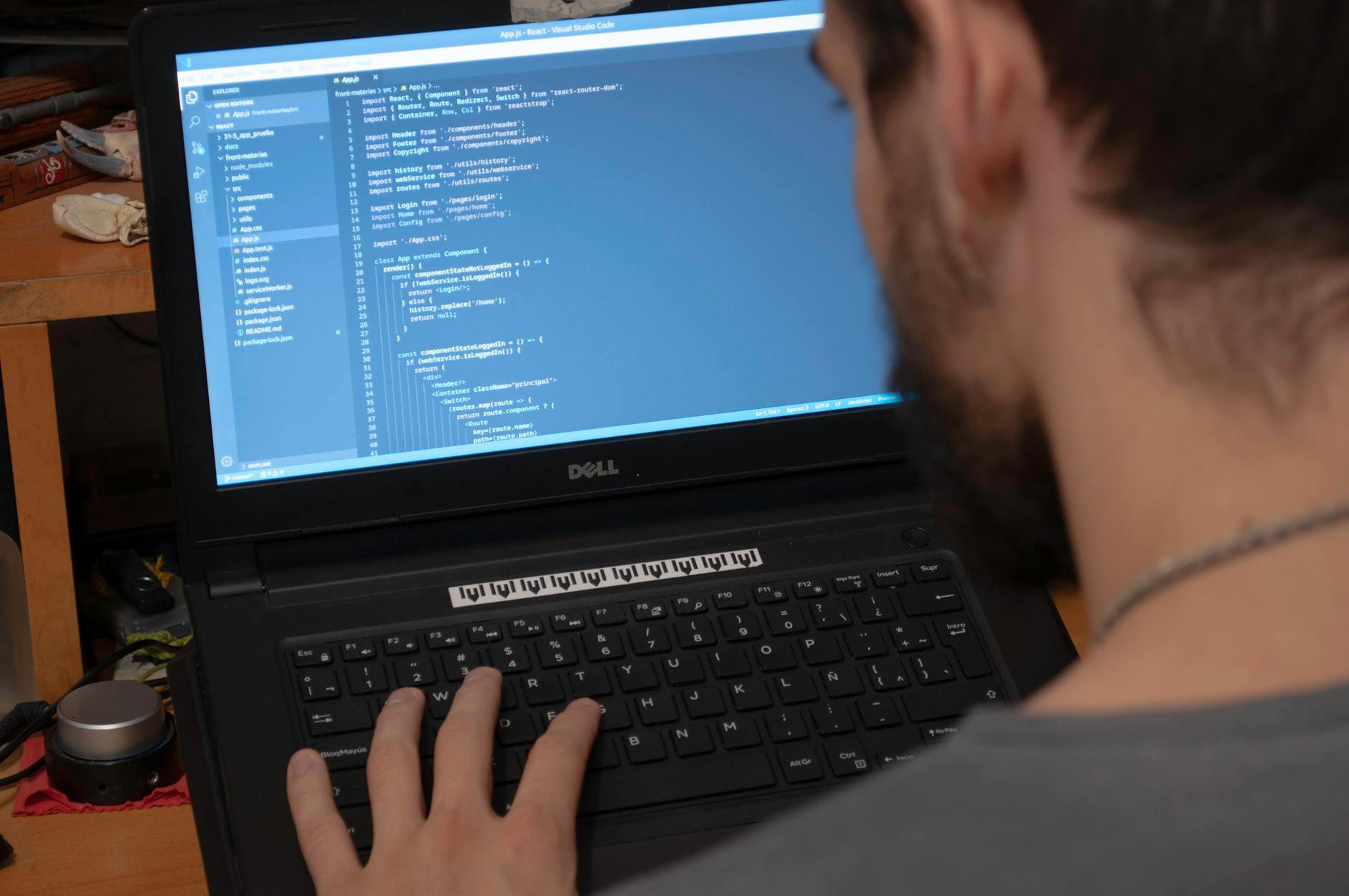
Photo by Mario Amé on Pexels
Harnessing Bash and Cron Jobs on Linux
Linux distributions are built around terminal productivity. A simple shell script paired with cron provides enterprise-grade scheduling without requiring overhead background apps.
Practical Example: Automated System Health Check and Backup
This script checks system disk usage, archives essential work configuration directories, and creates a daily compressed archive file.
#!/bin/bash
# Save as system_backup.sh

BACKUP_SRC="$HOME/Documents/Projects"
DEST_DIR="/var/backups/daily"
DATE=$(date +%Y-%m-%d)
LOG_FILE="/var/log/custom_backup.log"

mkdir -p "$DEST_DIR"

# Ensure target location has sufficient storage (warn if > 90% full)
USAGE=$(df -h "$DEST_DIR" | awk 'NR==2 {print $5}' | sed 's/%//')
if [ "$USAGE" -gt 90 ]; then
    echo "[$DATE] WARNING: Disk usage is over 90%. Backup skipped." >> "$LOG_FILE"
    exit 1
fi

# Create tar archive
tar -czf "$DEST_DIR/projects_$DATE.tar.gz" "$BACKUP_SRC" 2>> "$LOG_FILE"

if [ $? -eq 0 ]; then
    echo "[$DATE] SUCCESS: Backup created successfully." >> "$LOG_FILE"
else
    echo "[$DATE] ERROR: Backup failed." >> "$LOG_FILE"
fi

# Keep only the last 7 daily backups
find "$DEST_DIR" -name "projects_*.tar.gz" -mtime +7 -exec rm {} \;
Setting Up Cron Scheduling
To run your script every day at midnight, edit your system user crontab:
crontab -e
Add the following cron expression at the bottom of the editor window:
0 0 * * * /bin/bash /home/user/scripts/system_backup.sh
Cross-Platform Automation Best Practices and Error Handling
Building reliable desktop automations requires defensive scripting techniques. When scripts run headlessly in the background, an unhandled exception can cause missing files or unexpected system states.
1. Enforce Safe Execution Policies
Windows intentionally restricts script execution out of the box. Instead of globally disabling execution safeguards across your whole computer, sign your custom scripts or run individual tasks using the bypass flag directly inside Task Scheduler:
powershell.exe -ExecutionPolicy Bypass -File ScriptName.ps12. Always Use Absolute File Paths
Background scheduler environments (like cron or launchd) operate with minimal default shell environment variables. Avoid relying on working directories; always declare explicit paths like /usr/bin/python3 or /home/username/scripts/.
3. Implement Log Files for Silent Monitoring
Background tasks operate without visible console output. Pipe your standard outputs and error channels to dedicated log files so you can audit background jobs when necessary:
- Bash/Zsh Redirect syntax:
/path/to/script.sh >> /tmp/automation.log 2>&1 - PowerShell Redirect syntax:
Start-Transcript -Path "C:\Logs\script.log" -Append
4. Test Safely Before Scheduling
Always test scripts against non-critical mock files before setting background tasks to alter production directories or delete files. Utilizing trial runs saves hours of recovery work down the road.


No comments:
Post a Comment